Welcome back to our 60 days of Nuke Python series! In this tutorial, we’ll create a one-click setup that generates a Roto Blur Mask for artists using Python scripting in Nuke. We’ll explain each function and line of code to ensure you understand how to automate this process effectively.
Roadmap for Creating a Roto Blur Mask Setup in Nuke
- Create a Roto node.
- Create a Blur node, connect its input to the Roto node, and set its position:
- X position: same as the Roto node.
- Y position: 50 units below the Roto node.
- Create a Merge node, position it to the left side of the Blur node, connect its A input to the Blur node, and set its operation to ‘mask’.
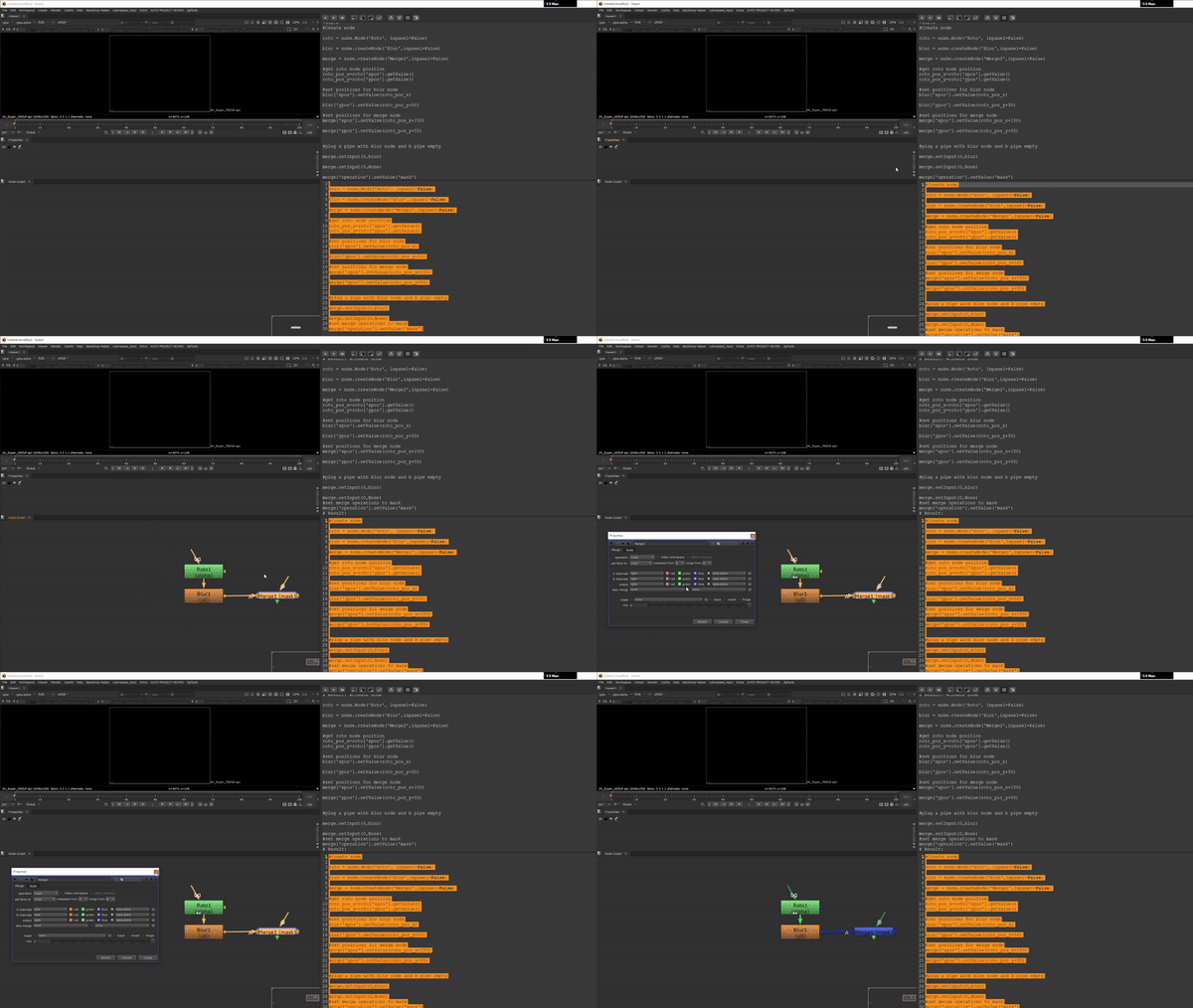
- Creating Nodes:
					roto = nuke.Node('Roto', inpanel=False)
blur = nuke.createNode('Blur', inpanel=False)
merge = nuke.createNode('Merge2', inpanel=False)
The functions nuke.Node and nuke.createNode are both used for creating nodes in Nuke, but they are used in slightly different contexts and have different syntax. Here’s a detailed explanation of the differences:
nuke.createNode
- Purpose: The primary function for creating nodes in Nuke. It’s straightforward and commonly used.
- Syntax:
nuke.createNode('NodeType', 'knob=value', inpanel=False) - Parameters:
'NodeType': A string specifying the type of node to create (e.g.,'Blur','Merge2').'knob=value'(optional): A string specifying initial knob values.inpanel(optional): A boolean that determines whether the properties panel for the node opens immediately.Falsemeans the panel does not open.
nuke.Node
- Purpose: Less commonly used than
nuke.createNode. It is used for directly interacting with node classes and is more flexible in certain scripting scenarios. - Syntax:
nuke.Node('NodeType', inpanel=False) - Parameters:
'NodeType': A string specifying the type of node to create (e.g.,'Roto').inpanel(optional): A boolean that determines whether the properties panel for the node opens immediately.Falsemeans the panel does not open.
In here we used both functions so we can understand better.
nuke.Node('Roto', inpanel=False): Creates aRotonode. Theinpanel=Falseargument means the properties panel will not open automatically.nuke.createNode('Blur', inpanel=False): Creates aBlurnode.nuke.createNode('Merge2', inpanel=False): Creates aMerge2node.
2. Getting the Position of the Roto Node
					roto_pos_x = roto['xpos'].getValue()
roto_pos_y = roto['ypos'].getValue()
roto['xpos'].getValue(): Retrieves the x-coordinate of theRotonode’s position.roto['ypos'].getValue(): Retrieves the y-coordinate of theRotonode’s position.
3. Setting Positions for the Blur Node:
					blur['xpos'].setValue(roto_pos_x)
blur['ypos'].setValue(roto_pos_y + 50)
blur['xpos'].setValue(roto_pos_x): Sets theBlurnode’s x-position to match theRotonode’s x-position.blur['ypos'].setValue(roto_pos_y + 50): Sets theBlurnode’s y-position to be 50 units below theRotonode.
4. Setting Positions for the Merge Node:
					merge['xpos'].setValue(roto_pos_x + 150)
merge['ypos'].setValue(roto_pos_y + 55)
merge['xpos'].setValue(roto_pos_x + 150): Sets theMergenode’s x-position to be 150 units to the right of theRotonode.merge['ypos'].setValue(roto_pos_y + 55): Sets theMergenode’s y-position to be 55 units below theRotonode.
5. Connecting Merge Nodes:
					merge.setInput(0, blur)
merge.setInput(1, None)
merge.setInput(0, blur): Connects theBlurnode to the A input (first input) of theMergenode.merge.setInput(1, None): Leaves the B input (second input) of theMergenode empty.
6. Setting Merge Operation to Mask:
merge['operation'].setValue('mask')
merge['operation'].setValue('mask'): Changes the operation of the Merge node to ‘mask’. This means the Blur node will be used as a mask input, affecting how the images are combined.
Final Code:
					# Create nodes
roto = nuke.Node('Roto', inpanel=False)
blur = nuke.createNode('Blur', inpanel=False)
merge = nuke.createNode('Merge2', inpanel=False)

# Get roto node position
roto_pos_x = roto['xpos'].getValue()
roto_pos_y = roto['ypos'].getValue()

# Set positions for blur node
blur['xpos'].setValue(roto_pos_x)
blur['ypos'].setValue(roto_pos_y + 50)

# Set positions for merge node
merge['xpos'].setValue(roto_pos_x + 150)
merge['ypos'].setValue(roto_pos_y + 55)

# Plug A pipe with blur node and B pipe empty
merge.setInput(0, blur)
merge.setInput(1, None)

# Set merge operation to mask
merge['operation'].setValue('mask')
This is demonstrates how to create a Roto Blur Mask setup in Nuke with a single click using Python. By automating node creation and positioning, you can save significant time and ensure consistency in your workflows.
Stay tuned for the next class in our series, where we’ll continue exploring the power of Python scripting in Nuke. Happy scripting!