Welcome back to the Nuke Python series! Today we’ll dive deep into the world of conditional statements, specifically focusing on the if, elif, and else constructs in Python. Understanding these is crucial as they form the backbone of decision-making in your scripts.
What are Conditional Statements?
Conditional statements allow your program to execute certain pieces of code based on specific conditions. This is similar to making decisions in real life. For example, if it’s raining, you take an umbrella; otherwise, you don’t.
The if Statement
The if statement evaluates a condition (an expression that returns True or False). If the condition is True, the block of code inside the if statement is executed.
Syntax:
if condition:
# code block to execute if condition is true
FlowChart:
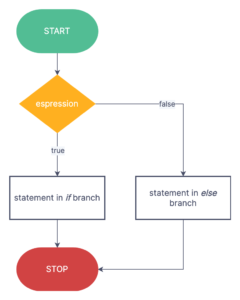
Example:
					x = 10

if x > 5:
    print("x is greater than 5")
In this example, the condition x > 5 is True, so the message “x is greater than 5” is printed.
The else Statement
The else statement comes after an if statement and is executed if the if condition is False.
Syntax:
					if condition:
    # code block to execute if condition is true
else:
    # code block to execute if condition is false
Example:
					x = 3

if x > 5:
    print("x is greater than 5")
else:
    print("x is not greater than 5")
Here, x > 5 is False, so the message “x is not greater than 5” is printed.
The elif Statement
The elif (short for “else if”) statement allows you to check multiple conditions. It must follow an if statement and precede an else statement (if used).
Syntax:
					if condition1:
    # code block to execute if condition1 is true
elif condition2:
    # code block to execute if condition2 is true
else:
    # code block to execute if all conditions are false
Example:
					x = 5

if x > 5:
    print("x is greater than 5")
elif x == 5:
    print("x is exactly 5")
else:
    print("x is less than 5")
In this example, x == 5 is True, so the message “x is exactly 5” is printed.
Combining Conditions
You can combine multiple conditions using logical operators like and, or, and not.
Example:
					x = 7
y = 10

if x > 5 and y < 15:
    print("Both conditions are true")
Here, both x > 5 and y < 15 are True, so the message “Both conditions are true” is printed.
Practical Nuke Example
In this example, we’ll explore how to interact with users in Nuke using Python. We’ll cover the nuke.getInput function to take input from the user and the nuke.message function to display messages. By the end of this example, you’ll be able to create a script that asks the user for their favorite software and responds accordingly.
					# Prompt the user to input their favorite software
tools = nuke.getInput('What is your favorite software?')

# Check if the input is 'Nuke'
if tools == 'Nuke':
    # Display a thank you message
    nuke.message('Thank you for loving Foundry Nuke')

# Check if the input is not 'Nuke' and not empty
elif tools != 'Nuke' and tools != '':
    # Display the user's favorite software
    nuke.message('Your favorite software is ' + tools)

# If the input is empty
else:
    # Display a message indicating no choice was made
    nuke.message("You don't have any choice yet")
Nuke Output:
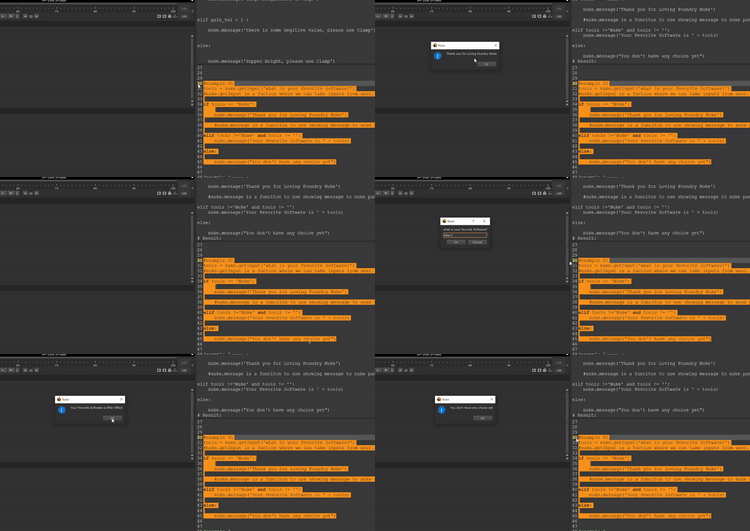
User for Input:
This line displays a dialog box asking the user to input their favorite software and stores the response in the variable tools.
tools = nuke.getInput('What is your favorite software?')
Checking the User’s Input:
If the user inputs “Nuke”, a message thanking them for loving Nuke is displayed.
					if tools == 'Nuke':
    nuke.message('Thank you for loving Foundry Nuke')
Handling Other Inputs:
If the user inputs something other than “Nuke” and the input is not empty, a message displaying their favorite software is shown.
					elif tools != 'Nuke' and tools != '':
    nuke.message('Your favorite software is ' + tools)
Handling Empty Input:
If the user does not input anything (leaves the input blank), a message indicating that no choice was made is displayed.
					else:
    nuke.message("You don't have any choice yet")
By using nuke.getInput and nuke.message, you can create interactive scripts in Nuke that respond to user input. This simple script demonstrates how to prompt the user for information and display different messages based on their response. You can expand upon this foundation to create more complex and interactive tools within Nuke.
Nuke Example 2
In this example, we are going to create a Grade node in our node graph. We will use different values for the gain knob, and this code will display whether the value is bright, not bright, or negative.
					node = nuke.selectedNode()

gain_val = node.knob('white').getValue()

if gain_val == 1:
    nuke.message('This is default value')
elif gain_val > 1 and gain_val <= 5:
    nuke.message('Image Brightness is High')
elif gain_val < 1:
    nuke.message('There is some negative value, please use Clamp')
else:
    nuke.message('Super Bright, please use Clamp')
Let’s break down the script step-by-step:
Select the Node
node = nuke.selectedNode()This line selects the currently active node in Nuke. The
nuke.selectedNode()function returns the node that is currently selected in the Node GraphRetrieve the Knob Value
gain_val = node.knob('white').getValue()Here, we access the
whiteknob of the selected node and retrieve its value. Theknob('white')method accesses the knob namedwhite, and thegetValue()method retrieves the current value of this knob.Conditional Statements
if gain_val == 1:nuke.message('This is default value') elif gain_val > 1 and gain_val <= 5:nuke.message('Image Brightness is High')elif gain_val < 1:nuke.message('There is some negative value, please use Clamp') else:nuke.message('Super Bright, please use Clamp')In this part of the script, we use a series of
if-elif-elsestatements to evaluate the value ofgain_valand display different messages based on its value.First Condition
if gain_val == 1:
    nuke.message('This is default value')
If
gain_valis exactly 1, Nuke displays a message indicating that this is the default value.Second Condition
elif gain_val > 1 and gain_val <= 5:
    nuke.message('Image Brightness is High')
If
gain_valis greater than 1 but less than or equal to 5, Nuke displays a message indicating that the image brightness is high.Third Condition
elif gain_val < 1:
    nuke.message('There is some negative value, please use Clamp')
If
gain_valis less than 1, Nuke displays a message warning that there is a negative value and suggesting the use of a Clamp node.Final Condition
else:
    nuke.message('Super Bright, please use Clamp')
If none of the above conditions are met, Nuke displays a message indicating that the value is super bright and suggesting the use of a Clamp node.